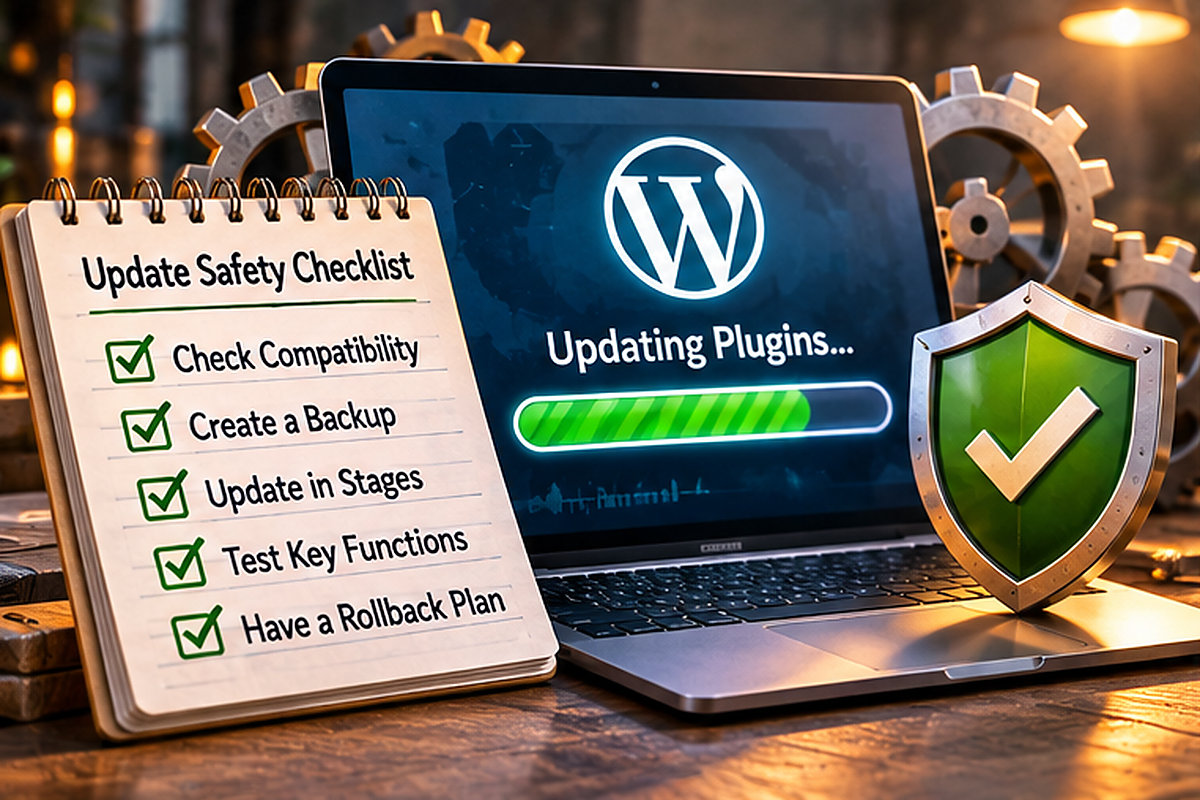
A WordPress plugin update can be routine, but “Update successful” does not prove the website still works. A safer process checks what changed, protects a recoverable copy, tests the functions customers actually use, and records the result. Small businesses do not need a complicated release department. They do need a repeatable way to avoid finding out about a broken form from a frustrated customer.
Start with the risk, not the update button
Not every update deserves the same procedure. A minor change to an unused decorative plugin is different from an update to the checkout, appointment booking, forms, security, or page-builder system. Ask two questions: What would stop working if this update caused a conflict? How quickly would we notice?
Classify changes as low, medium, or high operational impact. Low-impact changes still need a basic smoke test. Medium-impact changes deserve checks of affected pages and mobile layouts. High-impact changes need a verified backup, a tested recovery route, and a planned window when someone can inspect the site immediately afterward. This is a practical decision framework, not a guarantee that any category is risk-free.
Check the plugin’s dependencies before changing versions
A plugin update has compatibility questions that a general WordPress maintenance check can miss. For each plugin on your update list, make a quick note of the answers before applying it. If the changelog is vague, inspect more carefully rather than assuming the change is harmless.
Compare the plugin’s stated minimum WordPress and PHP versions with your installed environment. Review whether it relies on a companion plugin, theme extension, API connection, active license, or background service. If several related components need updates, read their documented compatibility requirements before deciding the order. A successful installation is not proof that the pieces will keep working together.
Look in the release notes for database changes, removed settings, changed form fields, or new permission requirements. Those call for different testing than a minor visual adjustment. Record the versions before updating so you know exactly what changed if a problem appears. Some updates cannot be safely reversed by simply installing an older ZIP, especially when data structures have changed.
Match the final test to the plugin’s purpose. For forms, verify submission and delivery. For bookings, use an approved test process without creating an unintended real reservation. For caching, check the customer-facing pages after the relevant caches are refreshed. This plugin-by-plugin review complements our broader WordPress maintenance process, which covers ongoing ownership and site-wide checks.
Before updating: capture a useful baseline
Write down the current WordPress, theme, and plugin versions, plus the exact plugins being changed. Confirm that a recent backup includes both files and the database. A backup notification is not the same as knowing whether restoration works; verify the restore process and where the backup is stored. For a critical site, consider testing the restoration on a staging environment before changing production.
Take a quick baseline of the homepage, one main service page, a contact form, and any payment or booking workflow. Save screenshots when a layout change is possible. Check whether the site is already showing errors. Without a baseline, it is easy to blame a new update for a problem that was present beforehand—or overlook a problem the update introduced.
What to test immediately after an update
Begin with a visitor’s path, not the WordPress dashboard. Load the homepage in a private browser window. Open the main navigation on a phone-sized screen. Visit an important service page. Submit a test inquiry and confirm that it reaches the intended destination. If your website takes payments or reservations, follow the approved test process for that system without creating an unintended real transaction.
Then inspect the technical basics: browser console errors when relevant, server or application error logs if available, unexpected redirects, missing images, broken styles, and unusual loading delays. An HTTP 200 response only confirms that a server returned a page; it does not establish that a form, menu, or conversion path works.
For businesses using WordPress forms, the difference between a successful on-screen message and a delivered inquiry matters. A form can display “Thank you” while its notification email fails. Our website forms and customer intake service explains why the entire submission-to-follow-up path deserves attention.
Use a small acceptance checklist
A simple release record can fit on one page. Record the date, plugin and version changes, backup location, test results, person responsible, and any issue discovered. Give each critical test a clear outcome: passed, failed, or not applicable. Do not call an untested item passed.
For example, imagine a hypothetical local service business updating a form plugin. The homepage and service pages load, and the contact form shows its success message. But the test email never arrives. That is not a successful release for a business that relies on inquiries. The correct response is to diagnose delivery, preserve the evidence, and either repair the problem or restore the last known-good state if the change is responsible and rollback is safe.
This test-first approach also applies to sites with multiple plugins that interact. A caching plugin might keep an outdated script after another plugin updates. Clearing the appropriate cache and retesting may resolve the symptom; randomly disabling plugins on a live site can introduce more disruption.
When should you use staging?
Staging is particularly useful for major WordPress, PHP, theme, builder, commerce, or membership changes. It gives you a place to check compatibility before customers see the result. But staging is not a perfect copy of production conditions: payment gateways, external integrations, caching, and email delivery may behave differently. A successful staging test reduces uncertainty; it does not replace a production smoke test.
Also consider data freshness. Restoring an older database to a live store or lead-generating site can overwrite recent orders, submissions, or account changes. Recovery plans must account for transactions made since the backup. That is why a rollback should be planned, not improvised after something breaks.
How to decide whether to update now or schedule it
Security fixes deserve prompt attention, particularly when a vulnerability is actively exploited or affects an exposed component. Yet rushing a high-impact change without a backup or testing can create an avoidable outage. The sensible response is to reduce exposure quickly while preparing a controlled update and verification. Routine feature changes can often wait for a staffed maintenance window.
Read the actual release notes when available. Look for compatibility requirements, known issues, database migrations, and changes to features your site uses. Keep unsupported plugins and themes on a replacement list rather than assuming that an old component will remain safe indefinitely. A dependable hosting and ongoing maintenance plan should make ownership of these decisions clear.
What if something breaks?
First identify the symptom and when it began. Is it limited to one page, one browser, or all visitors? Did the error appear immediately after the change? Review logs and the specific plugin’s documentation. Preserve the current state and recent submissions before considering a database restore. If a safe targeted repair is possible, make one change at a time and repeat the failed test. If the problem is severe and the last known-good state can be restored without losing newer business data, use the documented rollback plan.
Keep a short incident note: failed function, likely cause, action taken, verification result, and next check. This prevents the same issue from being rediscovered during the next maintenance cycle. For technical troubleshooting or a more reliable maintenance routine, see our WordPress development and support overview.
A 15-minute routine for lower-risk updates
For a small site and a genuinely low-impact change, a compact routine may be enough: confirm a usable backup; note the version change; update during a monitored period; load the homepage and one high-value service page; check mobile navigation; send a test inquiry; verify delivery; and record the result. The actual time depends on the site. Never compress a complex commerce or booking workflow into an arbitrary 15-minute promise.
The goal is not to eliminate every possible problem. It is to make a failure visible quickly, limit the consequences, and know who is responsible for the next step. If your business needs help building a maintenance process around its real customer workflows, request a discovery conversation with Grassroots.
Built in collaboration with ChatGPT.