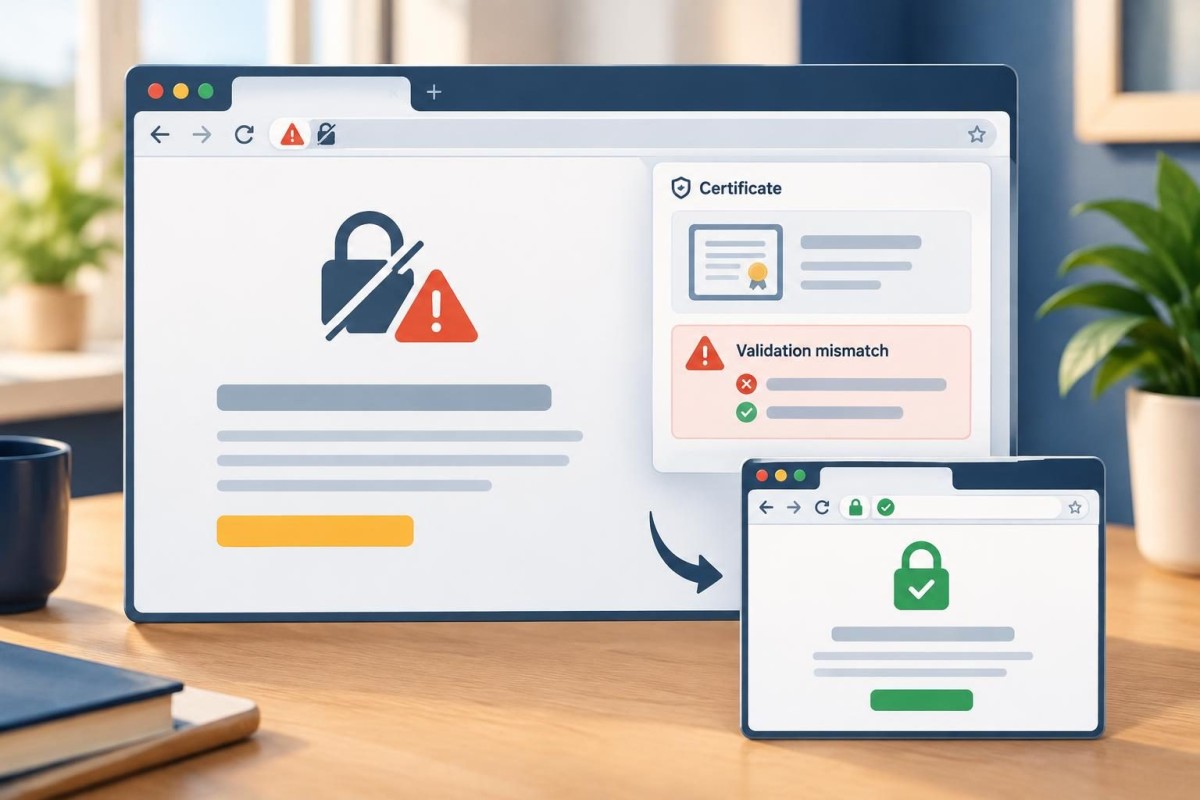
A customer opens your website and sees a warning that the connection is not private or that the page is “Not secure.” Even if the site still loads for you, that warning deserves attention. It can interrupt an inquiry, make visitors hesitate, or indicate that part of the connection is not protected as expected.
The first step is not to install another WordPress plugin or change a setting at random. Record the exact warning, the affected address and when it started. Then distinguish a certificate problem from an HTTP page or insecure content loaded inside an otherwise secure page. Those conditions have different remedies.
What does “Not secure” actually mean?
A secure HTTPS connection uses a valid TLS certificate to help a browser verify the website it reached and protect data in transit. The presence of HTTPS does not prove that a business is legitimate, that a website is malware-free, or that every form is safe. It does mean a specific layer of connection security is in place when the certificate and connection validate correctly.
The browser may display different warnings. An address beginning with http:// is not using HTTPS. A full-page privacy warning on https:// can mean the certificate is expired, issued for another hostname, untrusted or otherwise invalid. A page that loads over HTTPS but has broken images or scripts may contain mixed content. The precise browser message matters more than a vague report that “the lock is gone.”
Start with a five-minute evidence check
Use a private browsing window and, if practical, a second device or network. Test the homepage, a service page and the contact page. Check both the root domain and the www version if your business uses them. Do not bypass a browser warning to enter passwords, payment details or customer information.
Write down the full URL, the exact warning text, the browser and device, the date and time, and whether the problem happens everywhere or only on one page. Capture a screenshot without exposing private information. If the issue appeared after a domain, hosting or DNS change, note that timing, but do not assume the change is the cause without checking.
If the website is inaccessible to customers, contact the hosting provider or responsible technical administrator promptly. The checklist below helps you give them a precise report; it is not a substitute for fixing a certificate or server configuration.
Match the symptom to the likely next check
1. The browser shows a full-page certificate warning
Ask the host or server administrator to inspect the certificate currently served for the exact hostname, its validity dates, its issuing chain and whether it covers both the www and non-www addresses used by customers. A recently renewed certificate can still fail if the server is presenting the wrong certificate or an intermediate certificate is missing. A domain or DNS change may also send visitors to a different server than expected.
Do not try to “fix” this by disabling browser security, adding a plugin at random or changing the WordPress Site Address before confirming the server can deliver valid HTTPS. The host normally controls certificate installation and renewal. WordPress community support likewise distinguishes hosting-side certificates from WordPress settings; see the WordPress SSL support discussion.
2. The page opens as HTTP instead of HTTPS
Check whether the intended HTTPS address works directly. If it does, the site may need a carefully tested redirect from HTTP to HTTPS and consistent internal links. If HTTPS itself fails, do not force a redirect yet: customers could be sent straight into an error. Confirm the certificate and hosting configuration first, then test the redirect from the homepage and representative internal pages.
A site-wide change can affect login, forms, caching and redirects. Take a backup and have a rollback path before changing live server or WordPress URL settings. Our WordPress hosting transition checklist explains why domain, DNS, backups and rollback access should be checked together when infrastructure changes.
3. HTTPS works, but some images, fonts or functions fail
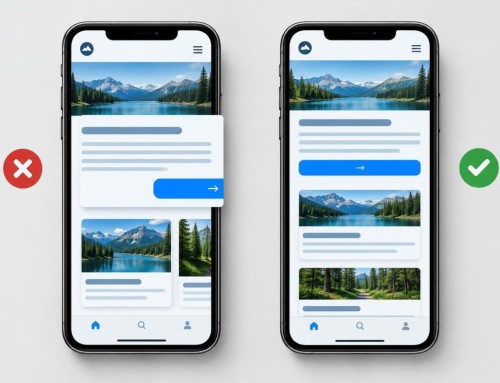
This can be mixed content: an HTTPS page requests an image, script, stylesheet or other resource over HTTP. Modern browsers may upgrade some requests and block others. A blocked script or stylesheet can make a form, menu or layout fail even when the certificate itself is valid.
Ask a developer to review the browser console and network requests for the exact failing URL. Fix the source of the insecure resource rather than hiding the warning. MDN’s mixed-content guide explains why some resource types are upgraded and others blocked. A controlled replacement of old HTTP asset references may be appropriate, but a blind database-wide search-and-replace can damage serialized settings or third-party integrations.
4. Only one domain variation or subdomain fails
Your main site, www address, shop, portal and staging site can be different hostnames. A certificate valid for one does not automatically cover all the others. Confirm which addresses are actually public and intended for customers, which DNS records point to which services, and whether each public hostname has valid coverage. Do not expose a staging or administrative subdomain merely to make a warning disappear.
If you are unsure who controls the domain or renewal notifications, use our domain renewal and access checklist to identify the registrar, responsible account and important dates. Domain registration, DNS hosting, web hosting and TLS certificate renewal are related, but they are not the same service.
A practical severity and ownership decision
Urgent: a full-page certificate warning on the live customer site, especially the contact or checkout path. Stop asking visitors to submit sensitive information through the affected page; alert the responsible technical provider and verify the repair from an independent browser or device.
High priority: the main page loads but an HTTPS-related blocked script breaks an inquiry form, navigation or other important function. Record the failing page and test the entire customer action after repair.
Scheduled corrective work: a noncritical legacy HTTP asset is being upgraded successfully but should be corrected at its source. It still deserves a controlled fix and later regression check, not an unsupported promise that everything is secure.
For each issue, identify who can act: registrar for domain ownership, DNS provider for routing records, web host or CDN for certificate delivery, and developer for WordPress links, themes, plugins and mixed content. One vendor may cover several roles. A clear owner prevents repeated handoffs without a resolution.
What to send your website support provider
A useful support request includes the exact affected URL, screenshot and warning text, first observed time, affected devices, whether the issue is reproducible, any recent changes and the customer action it interrupts. Ask the provider to confirm the root cause, the exact repair, the pages and hostnames tested, and how renewal or monitoring will prevent recurrence. Avoid sending passwords or private keys in an ordinary email.
If your site is maintained by a third party, review who is responsible for certificate renewal, monitoring and emergency response. Our guide to evaluating a WordPress maintenance plan can help you clarify the support scope before an incident.
Verify the repair before calling the incident closed
After the provider reports a fix, open the HTTPS homepage, a key service page and the inquiry page in a fresh browser session. Test the intended domain variations, follow an HTTP link to confirm the correct HTTPS destination, and submit a clearly labeled test inquiry only after the security warning is gone. Confirm the message arrived through the normal business process. Review any blocked-resource warnings if a developer has access to browser tools.
Keep a short record of what failed, what changed and the next certificate-renewal or monitoring checkpoint. If the issue returns, that record is more useful than a second round of guesses. If you need help diagnosing a WordPress site warning or coordinating the repair, request a discovery conversation with Grassroots so the scope and likely next steps can be reviewed first.
Built in collaboration with ChatGPT.