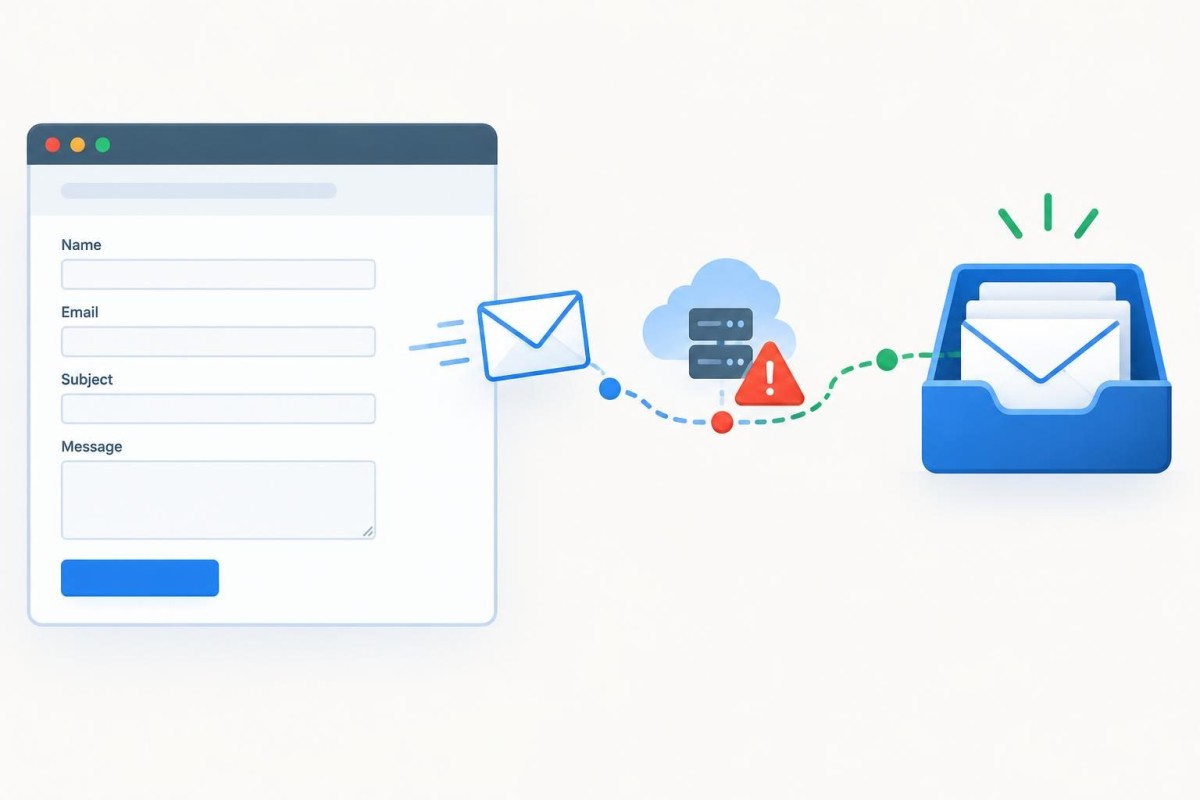
A customer can complete your website contact form, see a reassuring success message, and still leave you without an email notification. That is a business problem, not just a technical annoyance: the inquiry may be sitting in WordPress while nobody knows to respond. Before replacing the form or blaming your hosting company, separate three questions: Did the form accept the submission? Did WordPress attempt to send a notification? Did the destination mailbox accept and display it?
First, establish whether the inquiry was actually captured
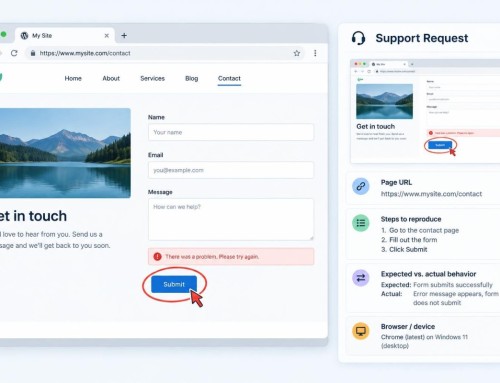
Submit a controlled test using an address you can access. Note the exact time, page URL, email address, and what the form displayed. Use a harmless message clearly labeled TEST. Check whether the form plugin keeps submission entries in the WordPress dashboard. Some plugins store entries by default, some require a setting or paid feature, and others only send email. If an entry exists, the form captured data even if the email failed. If no entry exists, do not assume delivery is the only problem.
Try a second test from a different browser or network if the first fails. Check required fields, spam challenges, conditional logic, and whether the success message appears only after the server confirms submission. A success message alone does not prove an email arrived.
Check the destination mailbox before changing WordPress
Search the entire mailbox for the test subject, sender, and submission time. Look in Spam, Junk, Promotions, quarantine, and any shared mailbox or forwarding destination. If a staff member recently changed addresses or left the company, verify the form still points to a monitored inbox. Confirm that mailbox rules are not archiving, forwarding, or deleting notifications.
Where Microsoft 365 or Google Workspace administers the mailbox, an authorized administrator can inspect message traces or email logs to determine whether the provider accepted, rejected, quarantined, or never received the message. A missing message in the visible inbox is not proof that WordPress failed to send it.
Understand the difference between a form submission and an email notification
A form typically performs at least two jobs: process the submitted fields and trigger a notification. Those jobs can fail independently. The website may store the lead while the notification fails because of a sender-address policy, a disabled action, a mail transport problem, or a rejected message. Conversely, an email might arrive while the submission record is not retained.
This distinction is central to a reliable website forms and customer intake setup. Decide which system is the durable record of the inquiry and which is only the alert. For important leads, an email notification should not be the sole record.
Inspect the notification settings in your form plugin
Open the specific form and review its email or action settings. Confirm the notification action is enabled, the recipient is correct, and conditional rules are not suppressing delivery. Check whether the sender address belongs to the website domain and whether Reply-To uses the visitor’s submitted address. Avoid placing a visitor’s Gmail or Yahoo address in the From field; many receiving systems distrust mail claiming to originate from a domain the website does not control.
Check field tokens or merge tags carefully. An outdated field key can produce a blank recipient, missing subject, or incomplete message. If the plugin supports multiple notifications, test the owner notification separately from the visitor’s confirmation email. A visitor receiving a confirmation does not prove the business notification worked.
Verify the website’s mail-sending method
Many WordPress installations rely on PHP mail or the host’s default mail service. That may work intermittently, but it offers limited delivery visibility and can be poorly aligned with the business domain’s authentication. A properly configured transactional email service or authenticated SMTP connection is often more dependable. The correct choice depends on the mailbox provider, hosting environment, sending volume, and support arrangement.
For domain-based email, check SPF, DKIM, and DMARC with whoever manages DNS and mail. These controls help receiving servers evaluate whether messages are authorized and authenticated. They are not a magic fix: a valid DNS record does not repair a disabled form action or a wrong recipient. Do not paste generic SPF records from a tutorial; changing them incorrectly can interrupt other legitimate senders.
A WordPress support review can isolate the plugin, mail transport, DNS, and mailbox stages without changing everything at once. If your host or email provider supplies delivery logs, preserve the relevant entries before altering configuration.
Use a simple fault-isolation sequence
Case 1: No submission record and no email
Focus first on form processing: browser errors, JavaScript conflicts, spam protection, validation, caching, security rules, and plugin errors. Test on the actual live page rather than assuming the editor preview behaves identically.
Case 2: Submission recorded, but no notification email
Inspect notification actions and recipients, then mail transport logs. A plugin-level test email may help, but it is not equivalent to testing the full form action. Run both and compare results.
Case 3: Provider accepted the email, but staff cannot see it
Investigate quarantine, filters, forwarding, shared mailbox access, and client-side rules. Do not keep changing WordPress settings when the evidence points downstream.
Case 4: Some notifications arrive and others do not
Compare the time, form, sender, recipient, and content of successful and failed tests. Look for conditional notification rules, rate limits, provider throttling, spam scoring, or intermittent transport failures. Record a repeatable pattern before making a broad change.
Protect inquiries while the issue is being fixed
If your form stores submissions, review that inbox regularly until notifications are reliable. If it does not, consider a supported submission-storage option or another approved intake channel, with appropriate access controls and retention practices. Do not expose customer details in public troubleshooting screenshots. For urgent customer requests, display a clearly monitored alternative contact method while testing continues.
Create a short test log: timestamp, test identifier, submission stored yes/no, notification attempted yes/no, mail provider result, inbox result, and configuration changed. Change one variable at a time. This makes it possible to distinguish a real repair from a test that happened to succeed.
Confirm the repair with an end-to-end test
After correcting the identified stage, submit at least two fresh tests using the live form. Verify the success response, saved entry if available, delivery to the actual business recipient, and the content of the message. Test Reply-To by replying to a test notification. Where multiple forms or destinations exist, check each separately. A single plugin test-email success is not enough.
Keep an eye on the process afterward. A monthly controlled submission and a documented owner for mailbox notifications are simple ways to catch a broken handoff before a customer does. For more ongoing reliability, review your hosting and maintenance support arrangements so responsibility for form, DNS, and mailbox issues is clear.
When to ask for help
If submissions are disappearing, mail logs show rejection, or several systems are involved, gather the test timestamps, affected form URL, plugin name, and any non-sensitive error messages. That gives a technician a focused starting point and avoids paying for a broad rebuild that may not be necessary. For help tracing the issue from form submission through inbox delivery, request a discovery conversation.
Built in collaboration with ChatGPT.