
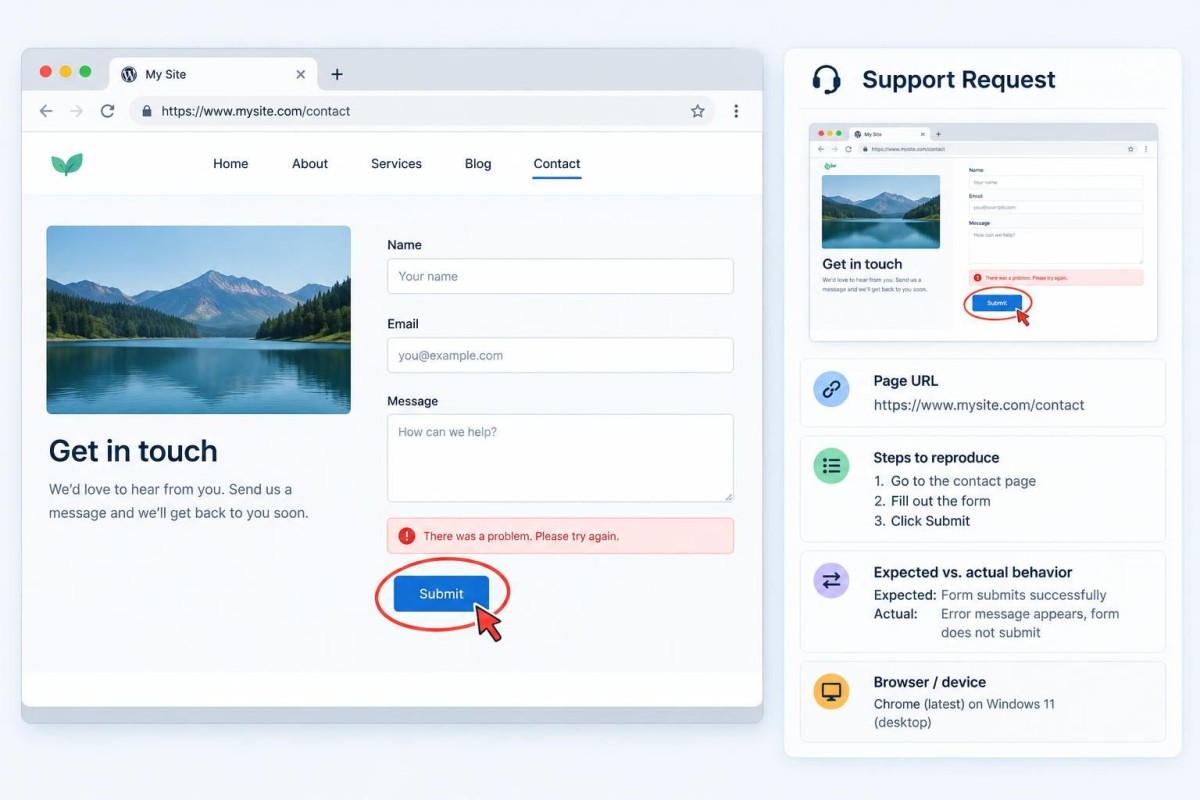
When a WordPress website breaks, the first message to a developer is often “The site isn’t working.” That is understandable, but it leaves out the details needed to find the problem. A better report identifies what failed, where it failed, how to reproduce it, and what changed. You do not need technical vocabulary. You need a few observations that separate a specific fault from a general impression.
This guide gives small-business owners a practical way to report WordPress problems without guessing at the cause, sharing passwords in email, or paying for a larger project before the actual issue is understood.
Start with the customer action that failed
Describe the task, not just the appearance of the page. “Our estimate form shows a confirmation but the office never receives the request” is much more useful than “The website is broken.” “The service menu will not open on an iPhone” is more precise than “Mobile is acting strange.” Both statements tell the person investigating where to begin and what a successful repair should accomplish.
If the problem affects sales or customer service, say so. A broken inquiry form may deserve attention before a slightly misaligned heading. If the problem prevents payment, scheduling or access to customer records, mention that impact without including customer details.
Use a six-part problem report
1. Give the exact page address
Copy the full URL of the affected page. If the issue appears on several pages, provide two or three examples and explain whether it also happens on the homepage. Avoid sending only a screenshot of the browser without its address bar. Different WordPress pages may use different templates, forms or plugins, and the URL helps narrow the scope.
2. Explain what you expected
Write one sentence about the intended behavior: “After submitting the form, the visitor should see confirmation and our office should receive the details.” The expected result is important because a developer cannot always tell whether an unusual behavior is a defect or an intentional configuration.
3. Describe what actually happened
Record the visible outcome, including the exact error text if there is one. Did the button do nothing? Did a blank page appear? Was the confirmation displayed even though no message arrived? If an error includes a code, copy it exactly. Do not replace it with a guess such as “The server is hacked.” A symptom is evidence; an unsupported diagnosis can send the investigation in the wrong direction.
4. List the steps to reproduce it
Write a short sequence: open the page, select a service, complete the required fields with test data, click Submit, and observe the result. If it happens intermittently, say that. A problem that occurs once out of ten attempts is different from one that fails every time. Do not submit real customer information while testing.
5. Note the device, browser and timing
Include whether you used a phone or desktop, the browser name, and roughly when you first noticed the issue. If it occurs only when logged in or only for visitors, mention that distinction. Testing in a second browser or private window may help identify a cached or account-specific symptom, but it is not proof of the root cause.
6. Mention recent changes without assigning blame
Was a plugin updated? Did the hosting provider migrate the site? Was a new form, popup, tracking script or payment connection added? Note the date and what changed. If nothing is known, write “No recent changes known.” Avoid rolling back software or deactivating important plugins on a live site simply to test a theory.
Capture evidence without exposing private information
A screenshot or short screen recording can make a confusing problem obvious. Show the page, the action, and the resulting error. Crop out customer names, payment details, private messages, access tokens and other sensitive material. If the problem involves a form, use clearly labeled test information. Share diagnostic files through an agreed secure method rather than posting administrator credentials into a support ticket or ordinary email.
Access should be granted only when needed and at the appropriate permission level. A developer may need a temporary WordPress account, but that does not automatically mean they need domain registrar, billing, or email administrator access. Our guide to website ownership and access explains why those accounts should remain distinct and under business control.
Decide whether the problem is urgent
Not every WordPress issue requires emergency treatment. Use a simple business-impact test. Critical: the site is unavailable, customers cannot pay or submit essential requests, or sensitive data may be exposed. High: a major customer action is unreliable or a key service page is unusable. Routine: a cosmetic problem, a minor layout inconsistency, or a nonessential feature behaves unexpectedly. These are practical triage categories, not a formal security severity rating.
For a suspected security incident, stop experimenting and contact the responsible technical provider promptly. Preserve relevant evidence. For a payment or form failure, note the affected workflow and use an approved temporary customer-contact alternative if one exists. A broken feature should not be hidden by a success message that makes visitors believe their request was received.
Ask for a diagnosis before approving a rebuild
A small-business owner may hear that a malfunctioning WordPress site needs a complete redesign. Sometimes the underlying architecture truly is difficult to maintain. But a single broken form, plugin conflict, caching problem or template defect does not establish that conclusion. The useful first question is: “Can this be isolated and repaired safely, and what would remain unresolved afterward?”
Our WordPress development and support services focus on diagnosing existing sites and preserving working functionality where practical. If the site needs continuing care, hosting and ongoing maintenance is a separate decision from a one-time repair.
A hypothetical example: a form that says “Success” but sends nothing
Imagine a local contractor whose quote-request form appears to submit normally. The office reports no email. A weak ticket says, “Please fix the contact page.” A stronger report says: “On the quote page, submitting a test request at 10:15 AM from a phone displayed the success message. No notification reached the monitored office inbox or spam folder within 15 minutes. We changed our email provider last week. Please verify form storage, notification routing and delivery before changing the form design.”
This is a hypothetical scenario, not a reported client result. The stronger report does not prove email migration caused the issue. It gives the investigator a reproducible symptom, a timing clue and an appropriate scope. For related troubleshooting, see our WordPress contact-form delivery guide.
What a useful repair estimate should clarify
Before approving work, ask what will be investigated, what access is needed, whether a backup or staging copy is appropriate, and how the result will be tested. Clarify whether the quoted amount covers diagnosis only or includes a defined repair. For uncertain issues, an initial diagnostic allowance may be more responsible than a fixed promise made without inspection.
Ask for a plain-English explanation of what was found and what changed. A useful completion test repeats the original failure steps and checks nearby critical functions. For example, after repairing a form, verify both the visitor confirmation and actual delivery, not just the absence of an error. Record any remaining risks or follow-up maintenance separately.
Copy this short report format
Page: [exact URL]. Expected: [what the customer should be able to do]. Actual: [what happens instead, including exact error]. Steps: [how to reproduce]. Environment: [device/browser and whether logged in]. First noticed: [date/time]. Recent changes: [known changes or none known]. Business impact: [who is affected and urgency]. Evidence: [sanitized screenshot or recording].
That is enough to start a productive conversation. You do not have to know PHP, hosting configuration or plugin internals to explain a problem well. You only need to describe the failure clearly and avoid turning a symptom into an assumed cause.
If your WordPress site has a specific problem and you want help identifying the right next step, request a discovery conversation with Grassroots. Tell us what stopped working and what you have already observed.
Built in collaboration with ChatGPT.