Not everyone who works on your WordPress website needs Administrator access. For most small businesses, that level of permission should be reserved for the owner or a trusted person responsible for technical administration. Someone writing articles, updating pages or reviewing content can often do the job with a narrower role.
The question is not whether a person is trustworthy. It is what they actually need to change, how long they need access, and what could be affected if their account is misused. This guide provides a role-selection checklist for a typical self-hosted WordPress site. It is more specific than our broader website ownership and account-control guide, which also covers domains, hosting, DNS and backups.
What can a WordPress Administrator do?
On a typical single-site WordPress installation, an Administrator can change settings, manage users, install or remove plugins and themes, and make changes that affect the entire site. This is substantially different from being allowed to edit an article. WordPress documents the default permissions in its official roles and capabilities reference.
There are exceptions. WordPress Multisite has a separate Super Admin role, and plugins or site builders may add custom roles or capabilities. A role name alone does not prove exactly what someone can do on a customized site. When access matters, inspect the actual permissions and test them.
Choose the role based on the work, not the job title
For a standard WordPress setup, these are the starting points. They are defaults, not promises about every plugin or hosting arrangement.
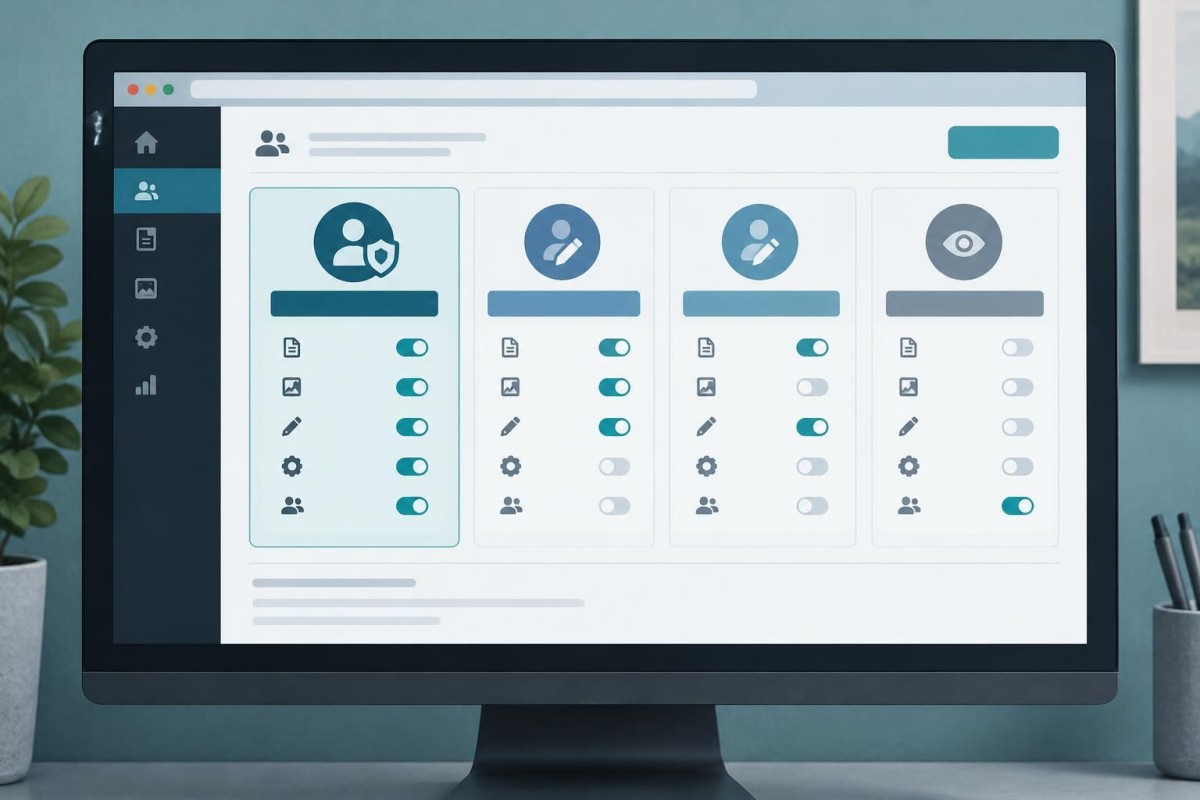
- Administrator: For people who genuinely need to manage users, site settings, plugins, themes or other site-wide technical operations. Keep this group small.
- Editor: For someone responsible for publishing and managing multiple authors’ posts and pages. An Editor can make significant content changes, but normally cannot administer plugins or users.
- Author: For someone who needs to write, upload media and publish their own posts, without managing other people’s content.
- Contributor: For someone who drafts posts for another person to review and publish. This is often a sensible starting point for a temporary writer.
- Subscriber: Primarily a profile-level role; it is not a general-purpose permission for editing site content.
A person updating product listings, events, form settings or a page-builder layout may need a plugin-specific role. Do not automatically upgrade them to Administrator just because a menu is missing. First determine which capability the work actually requires.
A practical access decision grid
Before creating or changing an account, write down four answers: the exact task, the lowest role that can perform it, the access end date, and who will review the result. Use these hypothetical examples as a starting point:
- Freelance blog writer: Drafts articles for approval. Start by testing Contributor rather than Administrator. If media uploads are needed, agree on a separate approved workflow or an appropriately configured role.
- In-house content manager: Updates several service pages and approves other authors’ articles. Editor may be suitable, but verify any page-builder or custom-content permissions.
- Developer fixing a plugin conflict: May require temporary Administrator-level access, staging and possibly hosting access. Confirm the precise work, recovery plan and removal date before granting it.
- Outside marketing analyst: Needs reports, not WordPress configuration. Give access to the appropriate analytics platform instead of a WordPress login when that meets the requirement.
This grid is useful because it exposes unnecessary permissions early. It also avoids the opposite mistake: giving someone a role too limited for their real assignment and then sharing an Administrator password to get around it.
Never solve an access problem by sharing one login
Individual accounts make it easier to revoke access, apply security controls and understand who is responsible for a change. A shared Administrator password cannot reliably distinguish one contractor’s activity from another person’s. It also creates a difficult handoff when someone leaves.
Use a unique account for each authorized person, a strong unique password and multi-factor authentication wherever supported. Confirm the site’s login and recovery arrangements before making permission changes. For high-privilege accounts, the WordPress developer handbook explicitly describes the principle of least privilege: grant only the access needed for the intended work.
Be cautious with accounts created for integrations. Some tools use application passwords, API credentials or service accounts. Those are not the same as ordinary employee logins, but they still need an owner, a purpose, limited permissions where supported and a revocation plan. Do not delete an unfamiliar integration account without first identifying what depends on it.
What should happen when a contractor’s project ends?
Access should have a clear end, not remain open indefinitely because the project went well. Build offboarding into the original work agreement.
- Confirm deliverables and ownership. Make sure the business has the files, documentation, licenses, credentials and administrative continuity it is entitled to receive.
- Identify every access path. WordPress is only one layer. Check hosting, domain/DNS, backups, email, analytics, form services and third-party platforms as relevant.
- Reassign important content and responsibilities. Check who owns posts, scheduled jobs, notifications and integrations before removing an account.
- Revoke access deliberately. Remove or downgrade accounts and credentials that are no longer needed, then verify the intended remaining users can still do their work.
- Document the change. Record the date, who approved it, what was changed and any follow-up test.
For a provider transition, our WordPress development and support service can help assess the technical work and access requirements before changes are made.
Run a 15-minute WordPress access review
This is an audit, not an instruction to start deleting users. In WordPress, an authorized Administrator can normally review accounts under Users. If you cannot see that area, you may not have the necessary permission. Do not use someone else’s credentials to work around it.
- Inventory: List active users, their displayed roles, what they do and whether the business recognizes each person or integration.
- Justify: For each Administrator, write down one current task that genuinely requires site-wide permission. If there is no answer, investigate whether a narrower role is possible.
- Check departures: Flag former employees, completed projects, unused accounts and accounts with unclear ownership for review. Do not assume inactivity proves an account is safe to delete.
- Protect recovery: Confirm that a legitimate owner or trusted technical administrator retains working access, that recovery details are current and that backups are available before any role changes.
- Test one change: Where safe, try the proposed lower role with a nonproduction test account or staging environment. Verify that the person can complete the intended task and cannot perform unrelated administrative actions.
Record exceptions rather than forcing every situation into a default role. A custom plugin may need a narrowly scoped permission, or a temporary support incident may justify elevated access with explicit oversight.
Two mistakes that can make an access cleanup worse
Removing the only working Administrator
Do not downgrade or delete the sole known working Administrator while trying to tidy the user list. First verify that the business has another authorized recovery path and that the intended account can actually sign in. A lockout can turn a small housekeeping task into an emergency.
Assuming an Editor cannot affect important business content
Editor is less powerful than Administrator, but it can still change or remove published material. On some sites, content changes affect forms, customer instructions, search visibility or critical notices. Review publishing responsibilities and backups accordingly. The right permission is the minimum needed for the job, not the minimum-sounding label.
Keep access review part of normal website care
Revisit permissions when a new employee joins, a vendor relationship changes, a project ends or an unfamiliar account appears. Pair that review with routine updates, backup checks and form testing. Our WordPress maintenance-plan checklist explains other responsibilities that should not be left ambiguous.
A small business does not need a complicated access bureaucracy. It needs to know who can change what, why that permission exists, and how to remove it safely. If your WordPress users, vendors or technical responsibilities have become unclear, request a discovery conversation with Grassroots to review the situation before making changes.
Built in collaboration with ChatGPT.